Introduction
Accessing the CRTC platform
Step 1: Log into Open Learning
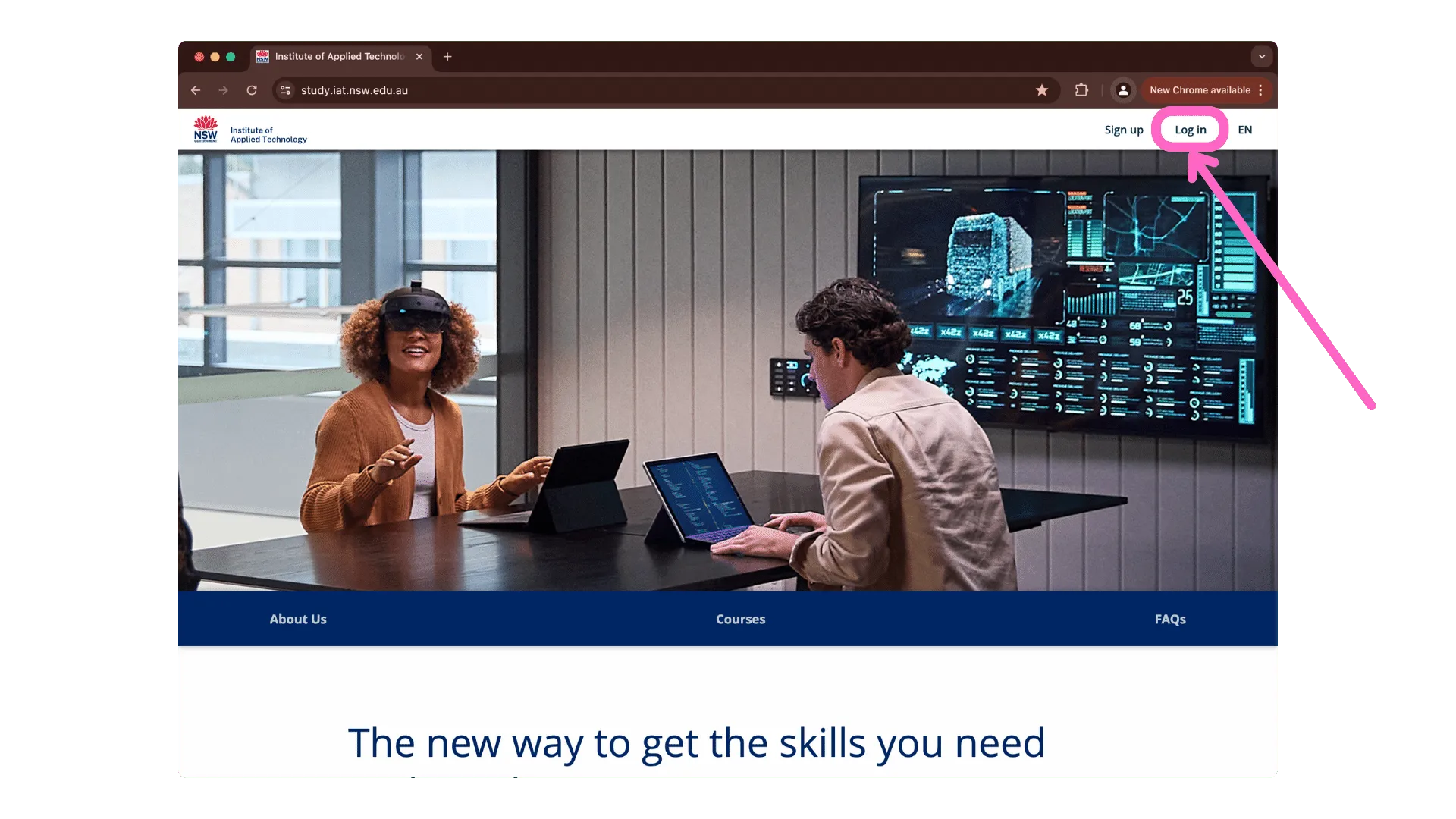
Visit openlearning.com/iat to get started.
Step 2: Select Micro-credential in Open Learning
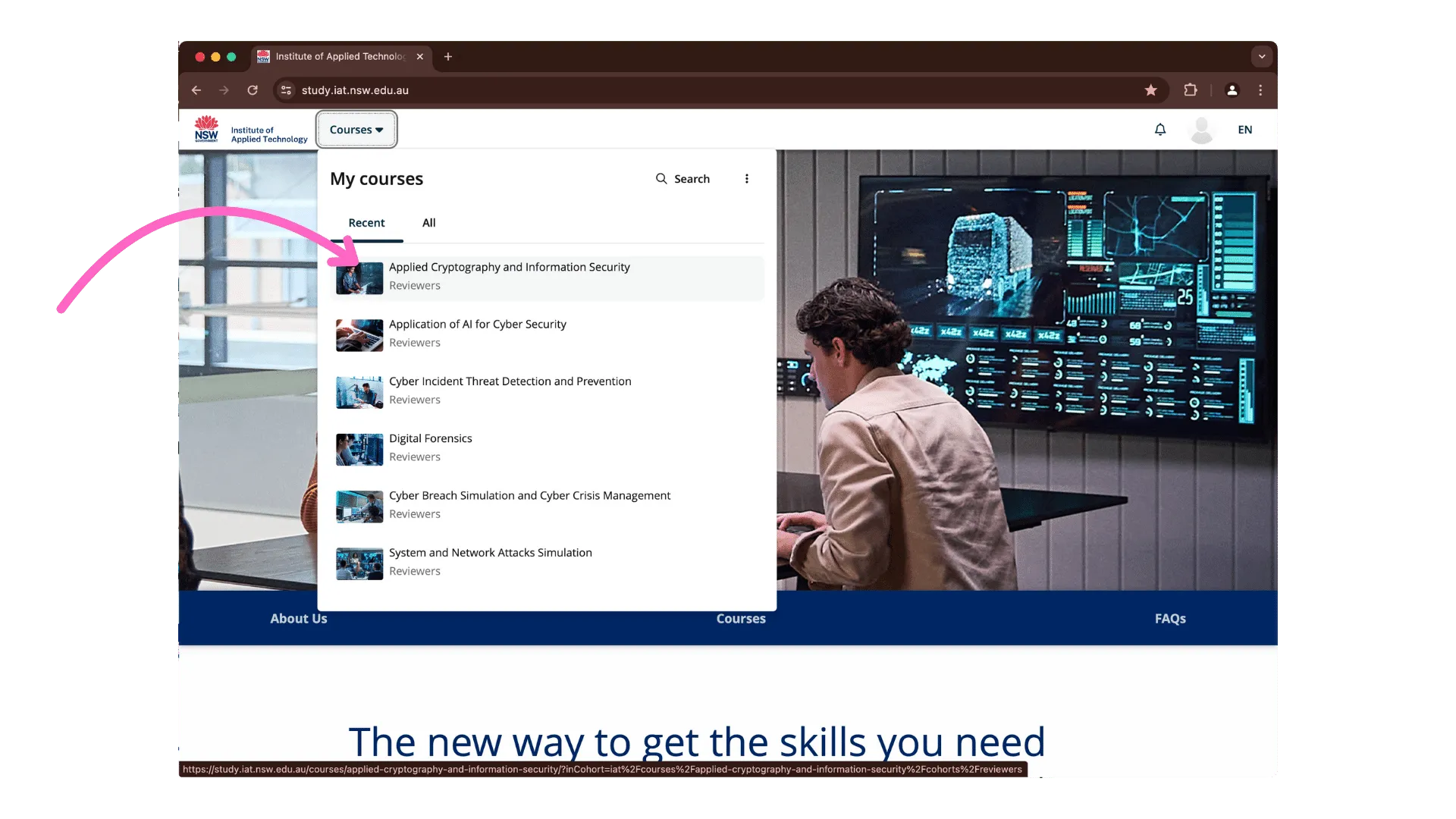
Select the microcredential you will be studying. If its not available in the “Recent” tab, make sure to
look for it under “All”
Step 3: Select Module
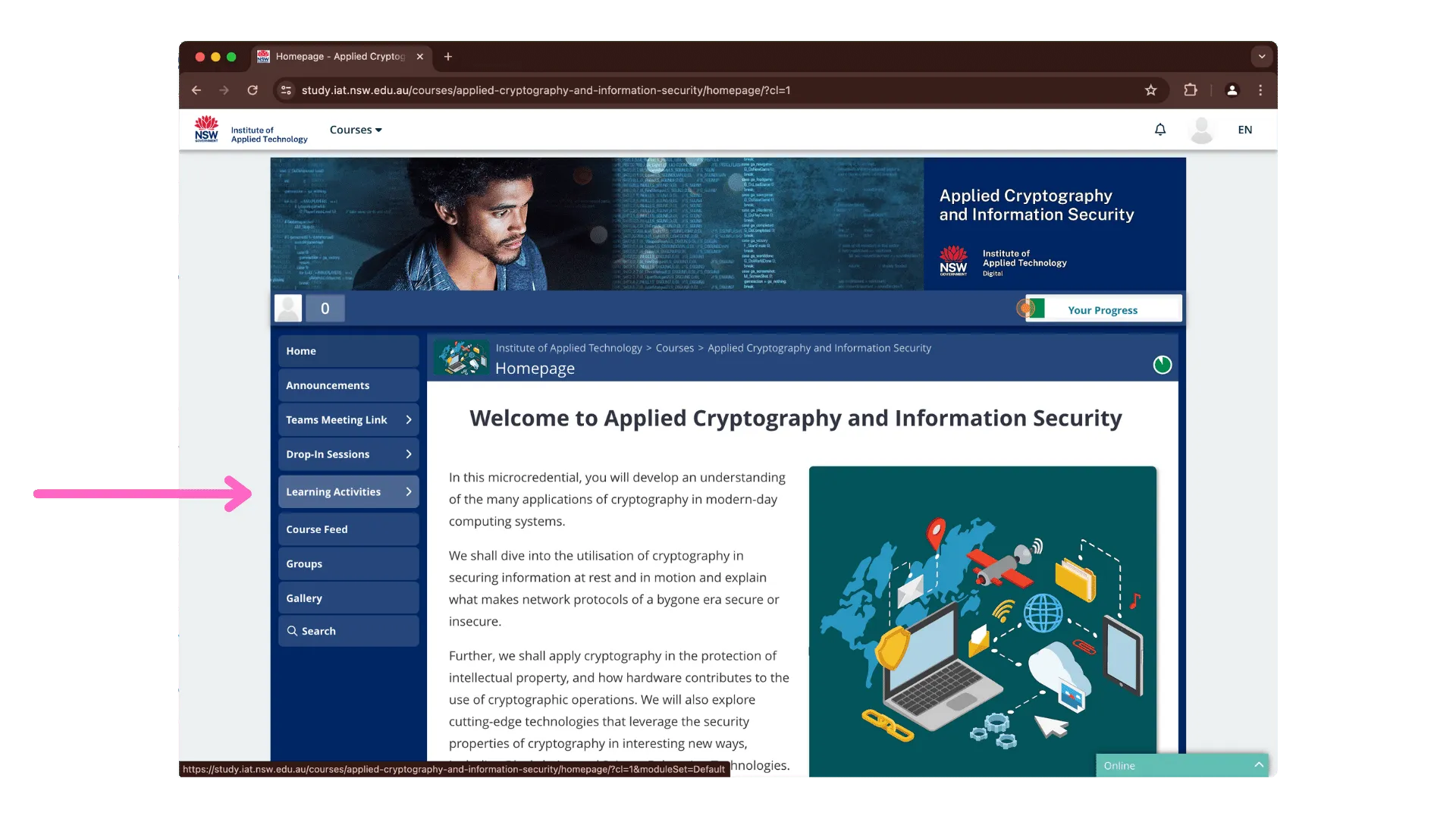
On the micro-credential page, click on “Modules & Activities” to access the micro-credential module.
This may also be called “Learning Activities”
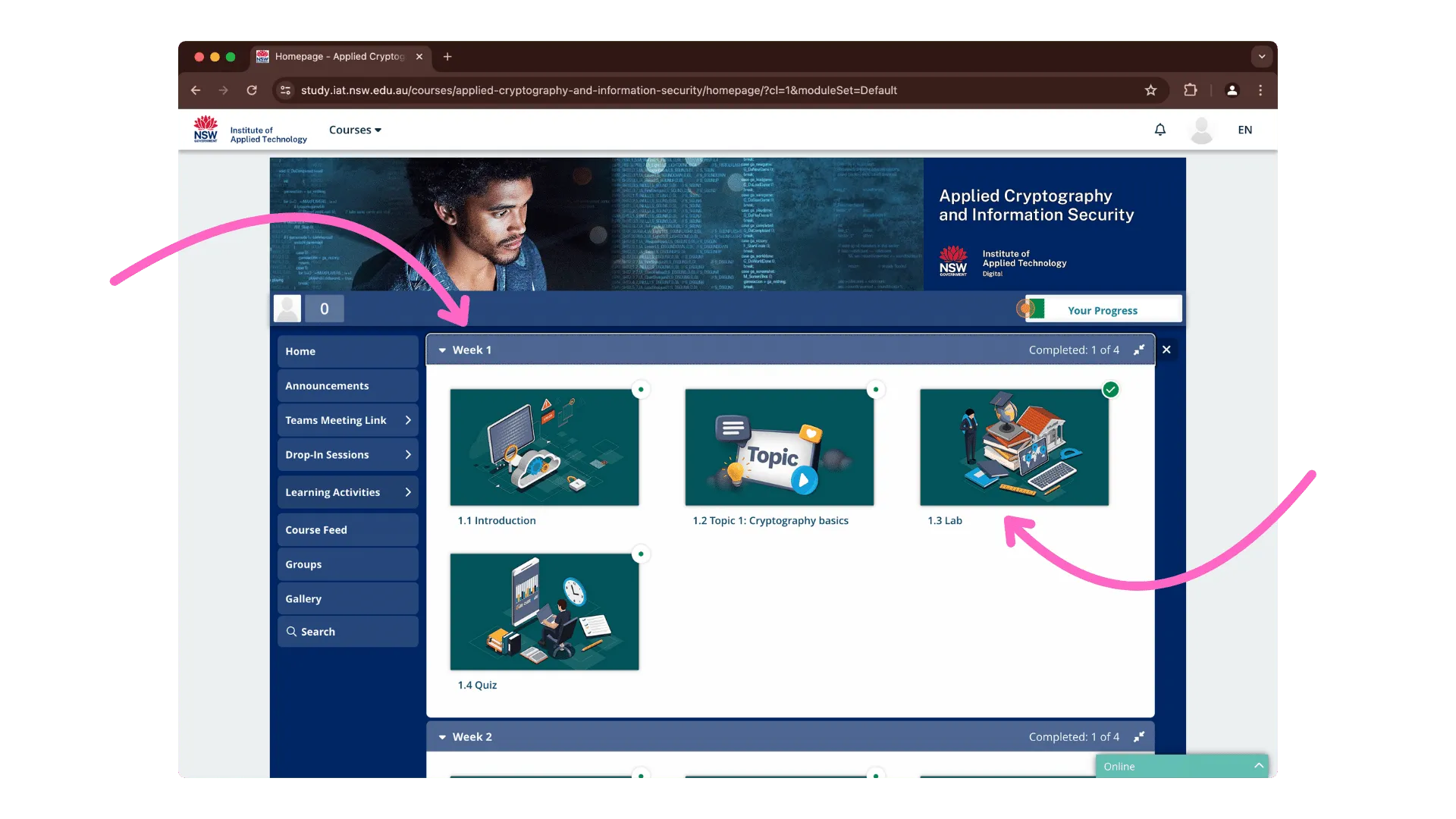
Step 4: Select Lab
On the Module page, there are multiple Class Participation sessions.
- Click on Week 1 if it isn’t already open to access the exercise page.
- Select Class Participation (could also named “Lab”, “Practical Exercise/Lab”, “Weekly Simulation”)
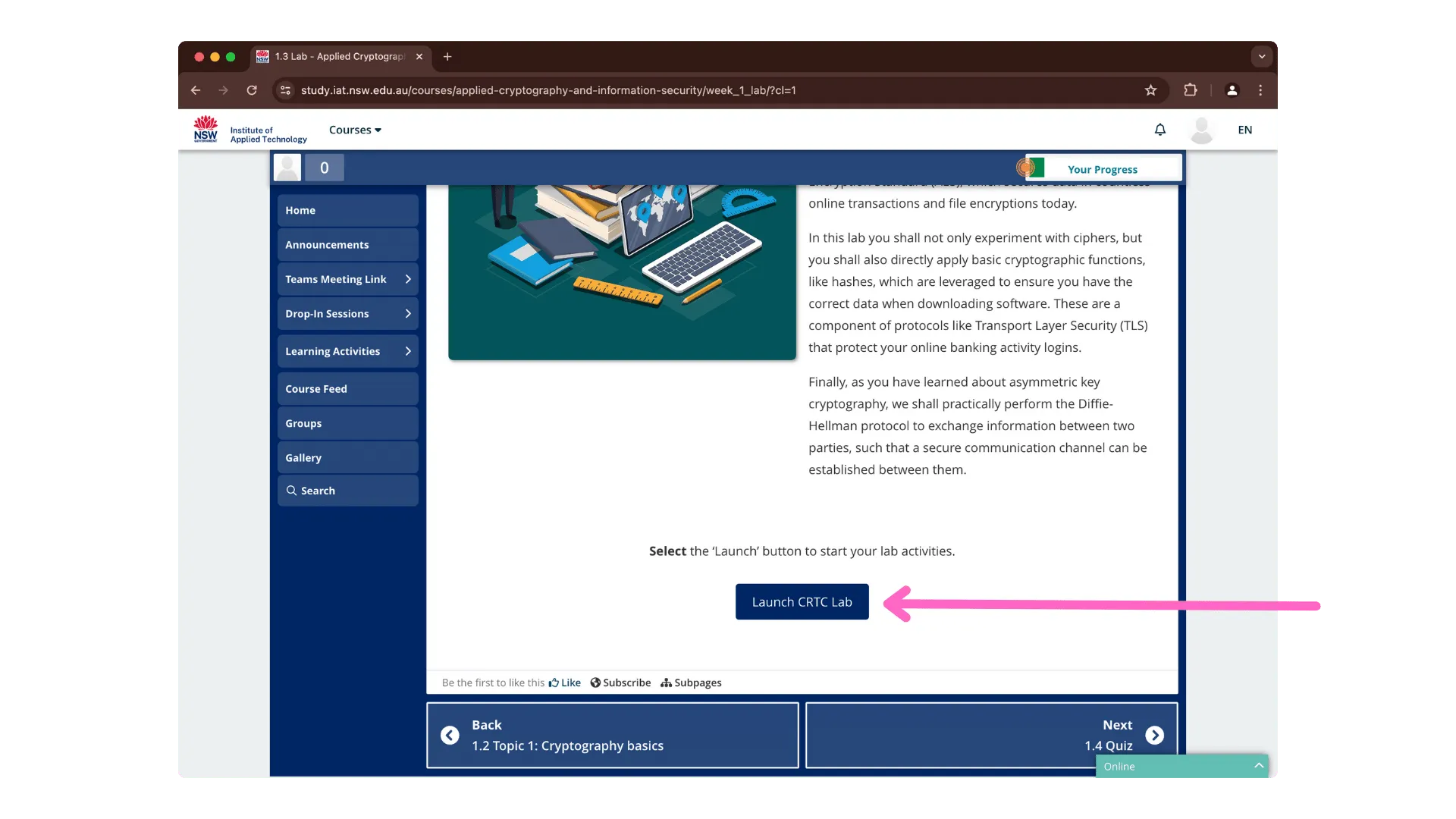
Step 5: Launch CRTC Lab
On the exercise page, scroll down, and click on “Launch CRTC Lab” button.
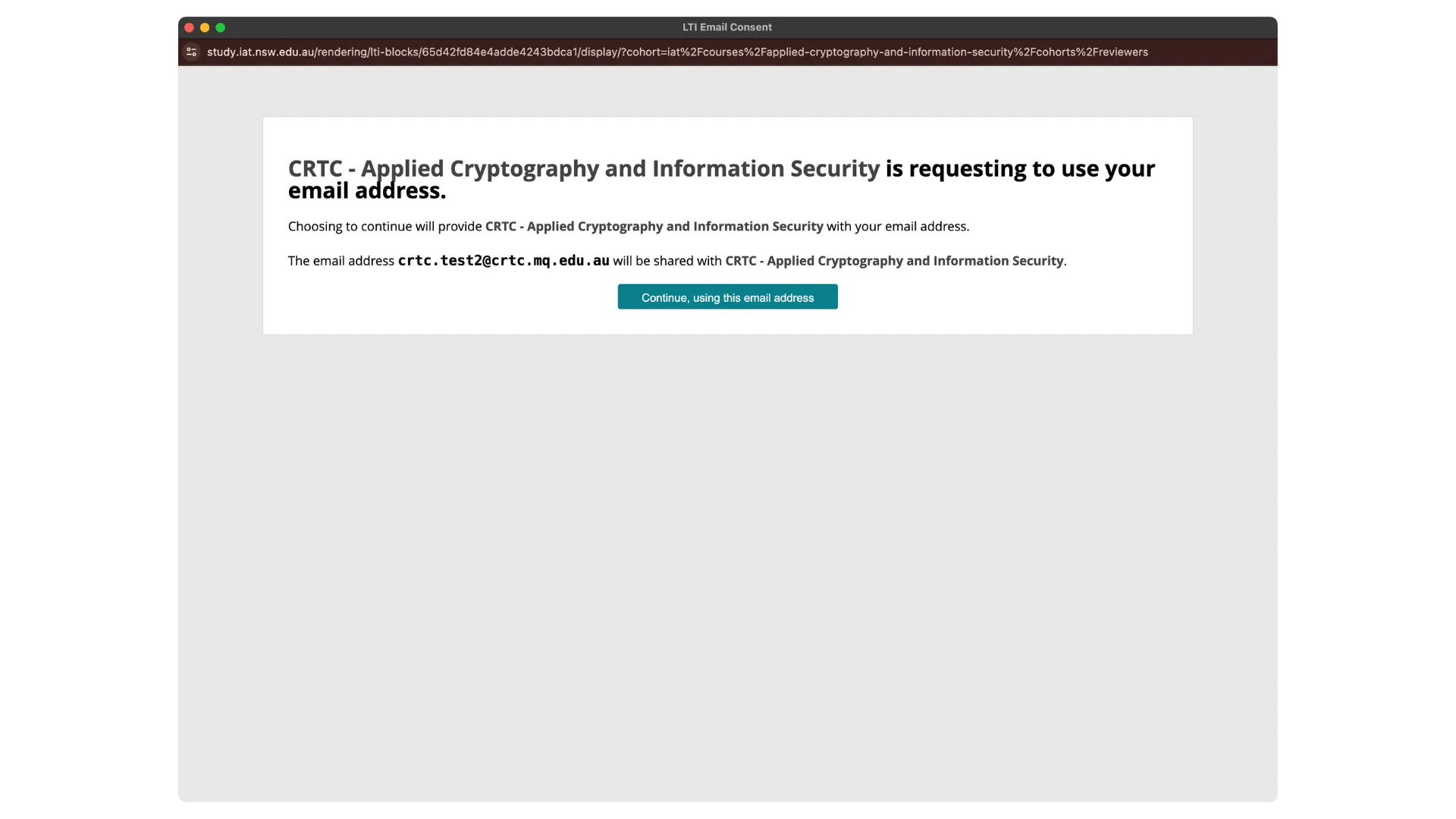
Heads up!
You might see the below screen if you opened the Lab from any other week. Proceed by clicking “Continue using this email address”.
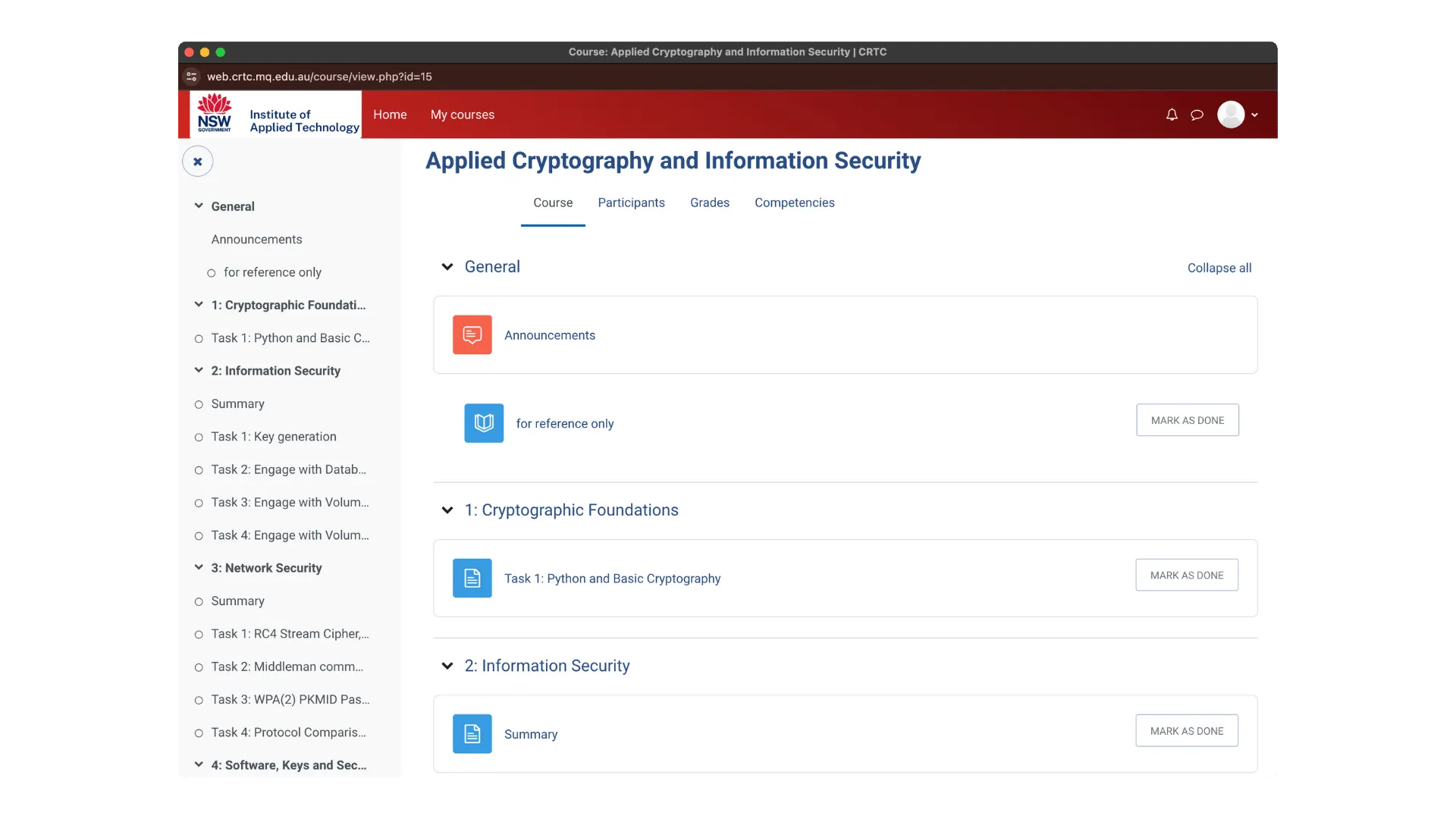
Step 6: Start learning
Each micro-credential will have a topic named “Announcements” or “Get Started” as its first topic. This section will contain the your log in credentials for the computers at the CRTC labs located in IAT-D Meadowbank campus. You will also be able to use these credentials
- Microsoft Azure (if applicable)
- Accessing the CRTC learning platform
- Virtual machines (if applicable)
- AnyTown simulations (if applicable)
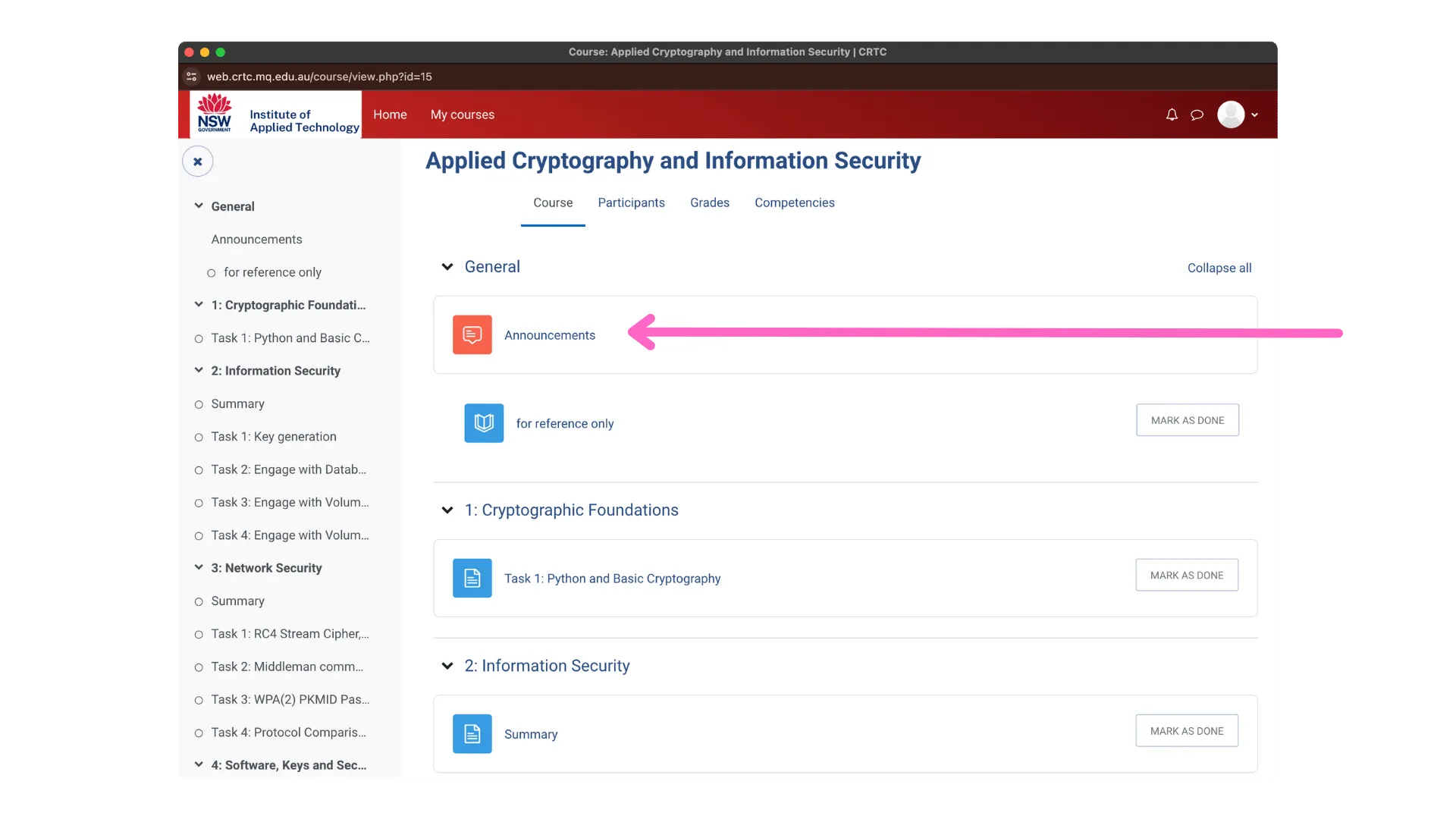
Launching Virtual Machines
If your micro-credential requires the use of virtual machines, you will find a button to launch them within the “Announcements” or “Get Started” topics.
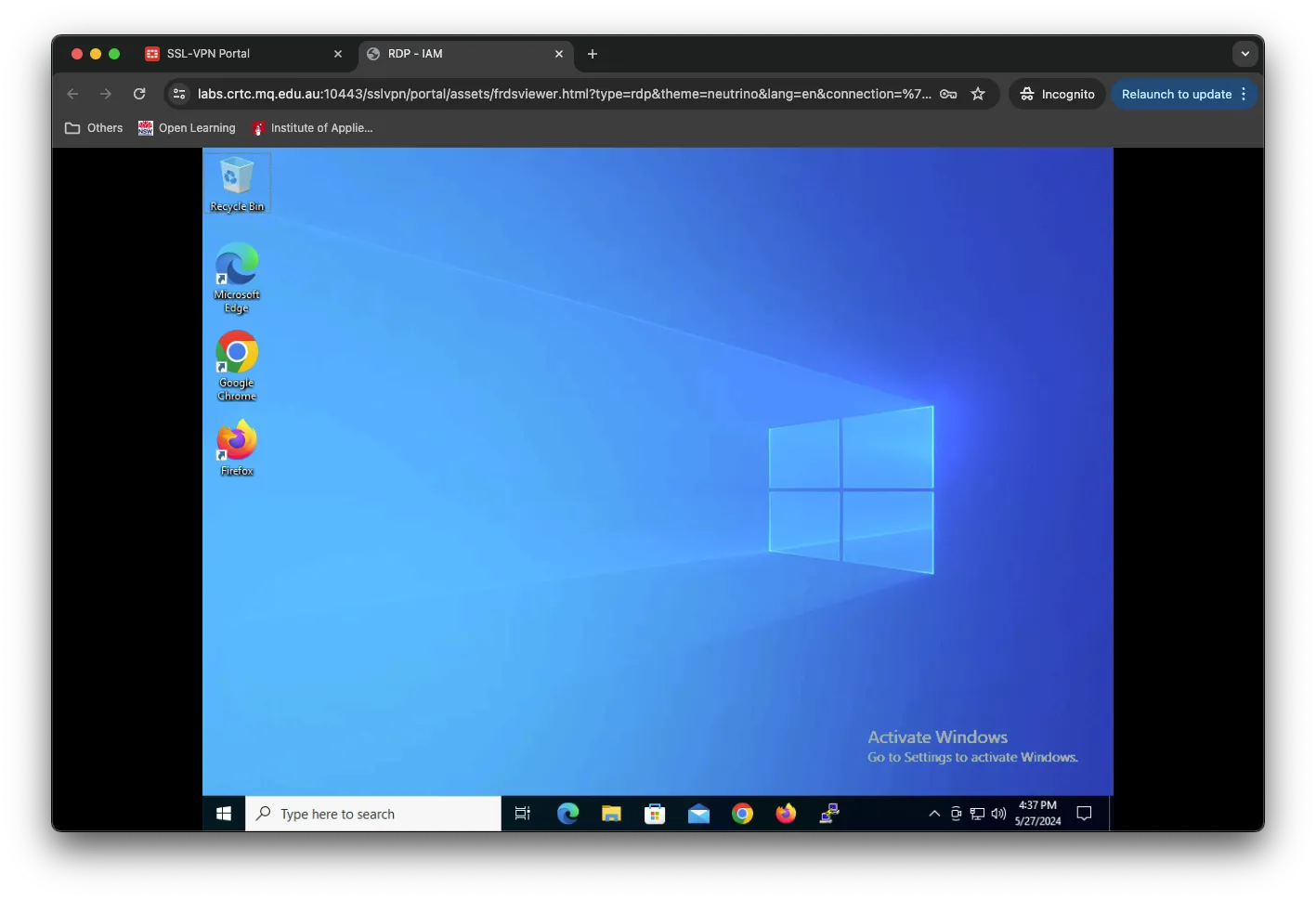
This will bring up your virtual machine. Remember to allow popups on this page if asked by your browser!
Alternative method
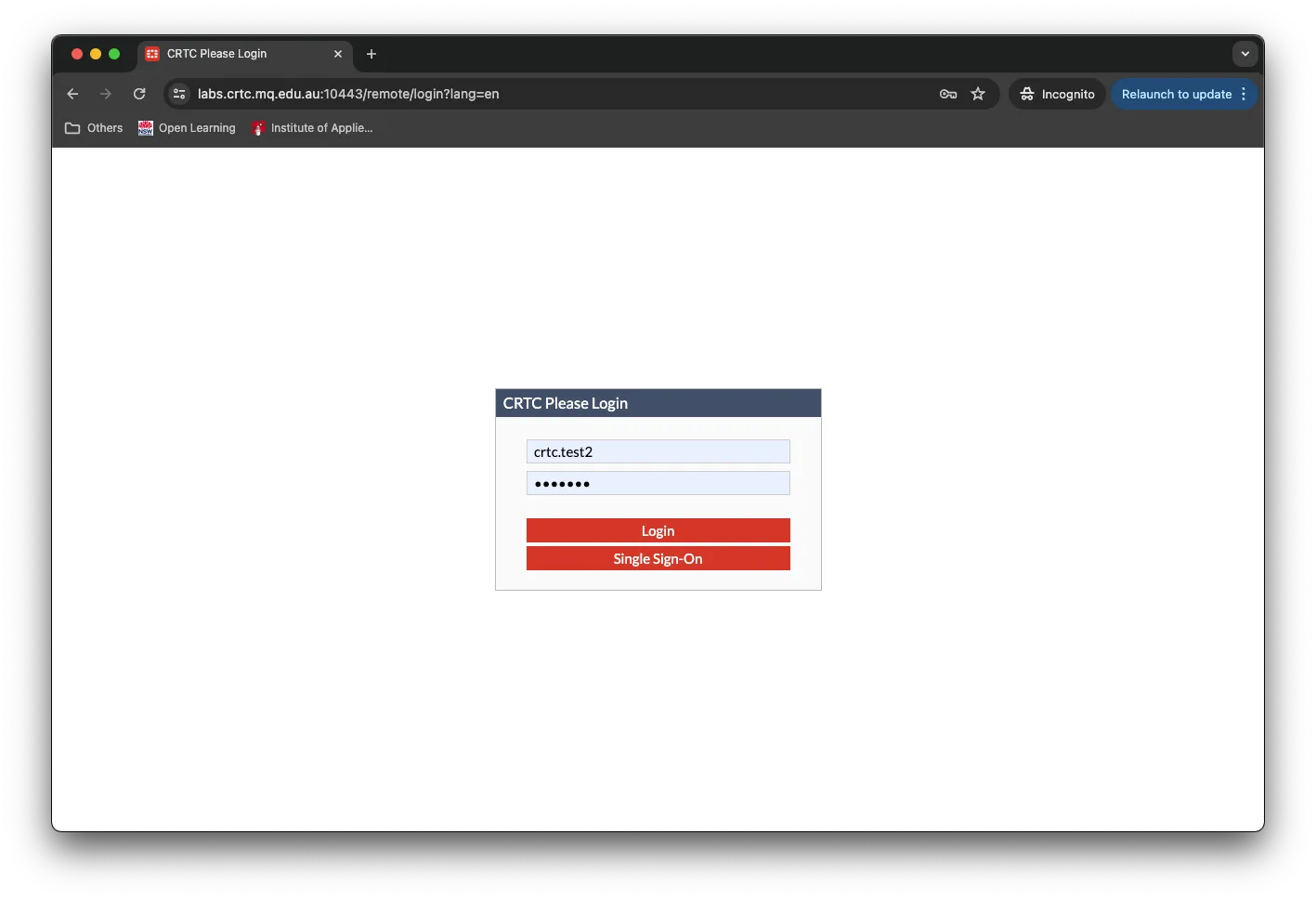
You can also access the virtual machines here.
Here, enter your username and password as provided in your email or in the Announcement section.
Heads up!
Your username must be in the “firstname.lastname” format.
Click on the bookmark that matches the initials of your micro-credential.
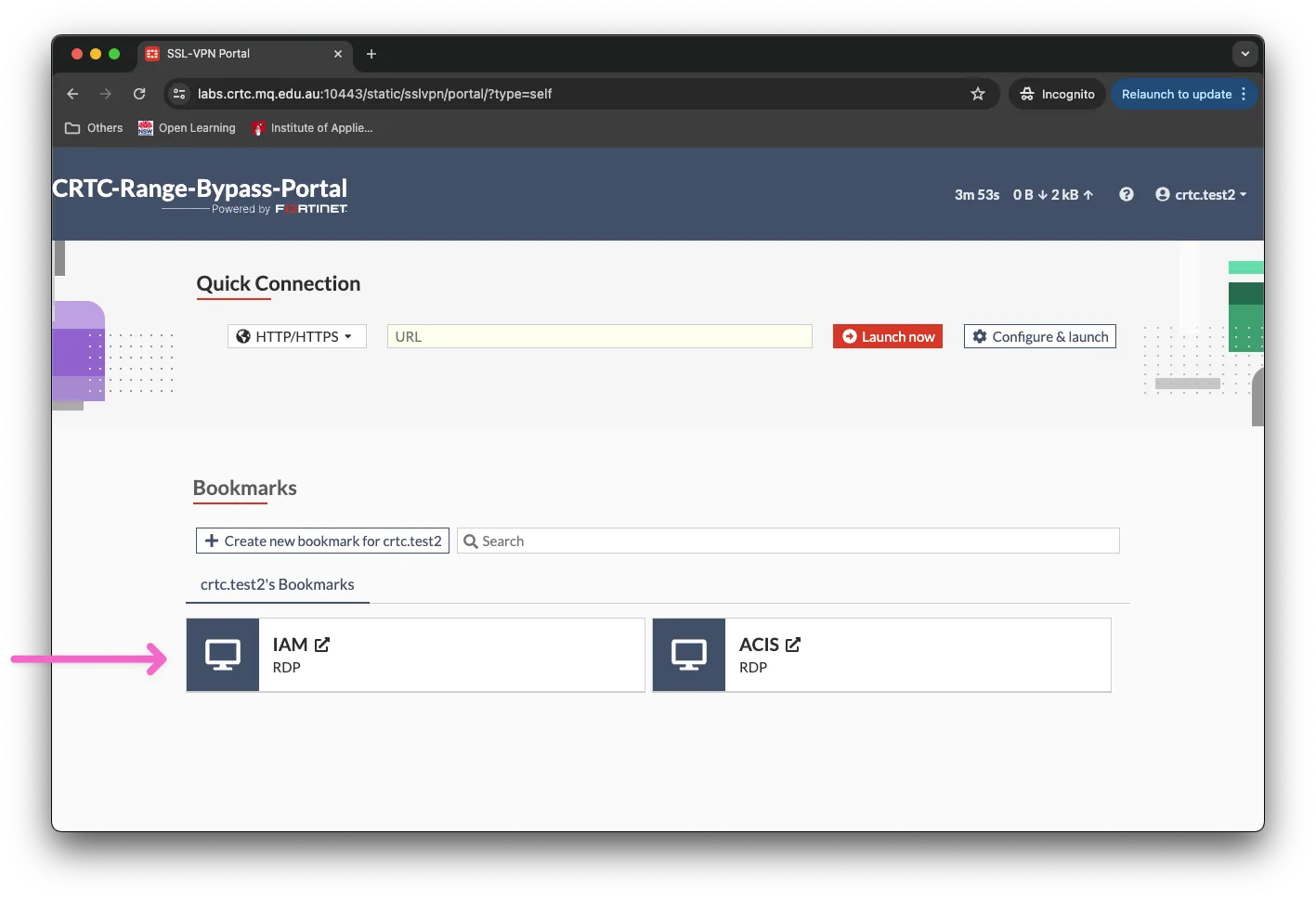
The bookmark will then launch the interactive virtual machine in a new window (remember to enable popups)